
Rating scales
A rating scale asks people to place themselves on a line, from one end to the other, instead of choosing between separate options. Use one to take the temperature of the room: how much people agree with a statement, how they feel about a session, how confident they are or a simple yes or no.
There are four kinds:
| Scale | Default answers | Good for |
|---|---|---|
| Agreement | Strongly disagree, Disagree, Neutral, Agree, Strongly agree | Testing a claim or a decision |
| Emotion | Miserable, Unhappy, Okay, Happy, Delighted | A quick pulse on how the room feels |
| Score | 1 to 10 | Confidence, readiness or a rating out of a number |
| Yes / No | No, Yes | A fast decision with two outcomes |
Every answer can be reworded, so a scale can say “Uninformative” to “Highly informative”, “Bad” and “Good”, or be written in your audience's language.
Create a rating scale
- Select a slide without a Doppio item and open the sidebar.
- Under Ask the audience, choose Rating scale. Doppio fills in the five Agreement answers.
- Under Scale, choose Agreement, Emotion, Score or Yes / No. Choosing a kind replaces the answers with its defaults.
- Under Question, type the statement or question you want rated.
- Adjust the answers if you want your own wording, then click Save poll.
A rating scale is a poll underneath, so Flow, Voting and the chart styles work exactly as they do for any other poll.
Changing the answers
Answers always run from the most negative on the left to the most positive on the right. Doppio relies on that order for its reporting, so keep it when you reword or reorder them.
- Agreement and Emotion answers can be renamed, added or removed, from 2 to 10 steps. Leave out the middle answer to make people pick a side.
- Score answers are numbers, so they have no answer cards. Instead, choose where the range starts (0 or 1) and where it ends, up to 10 steps. You can add a short label for each end, such as “Not at all” and “Completely”.
- Yes / No always has exactly two answers. Rename them freely; the first is the negative one and the second is the positive one.
Each person gets one vote on a scale, and the correct answer option is switched off, because a scale has no right answer. To turn a scale back into an ordinary poll, click Make it a regular poll. The answers stay as they are.
What your audience sees
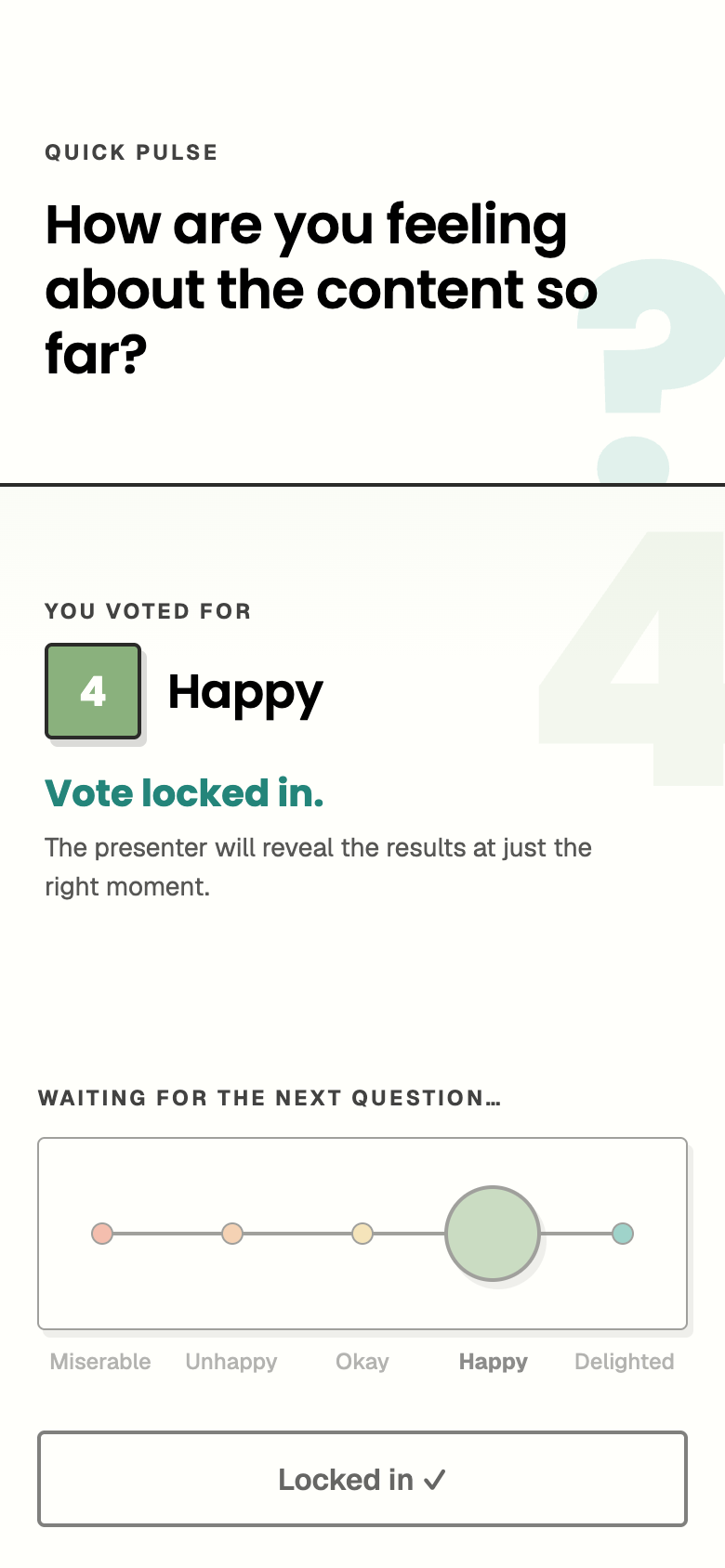
Phones show a control made for the scale instead of a list of options. People slide to their answer, see it written out above the control, adjust it as often as they like, then tap Lock it in. Nothing is counted until they do, and once it is locked the vote is final.
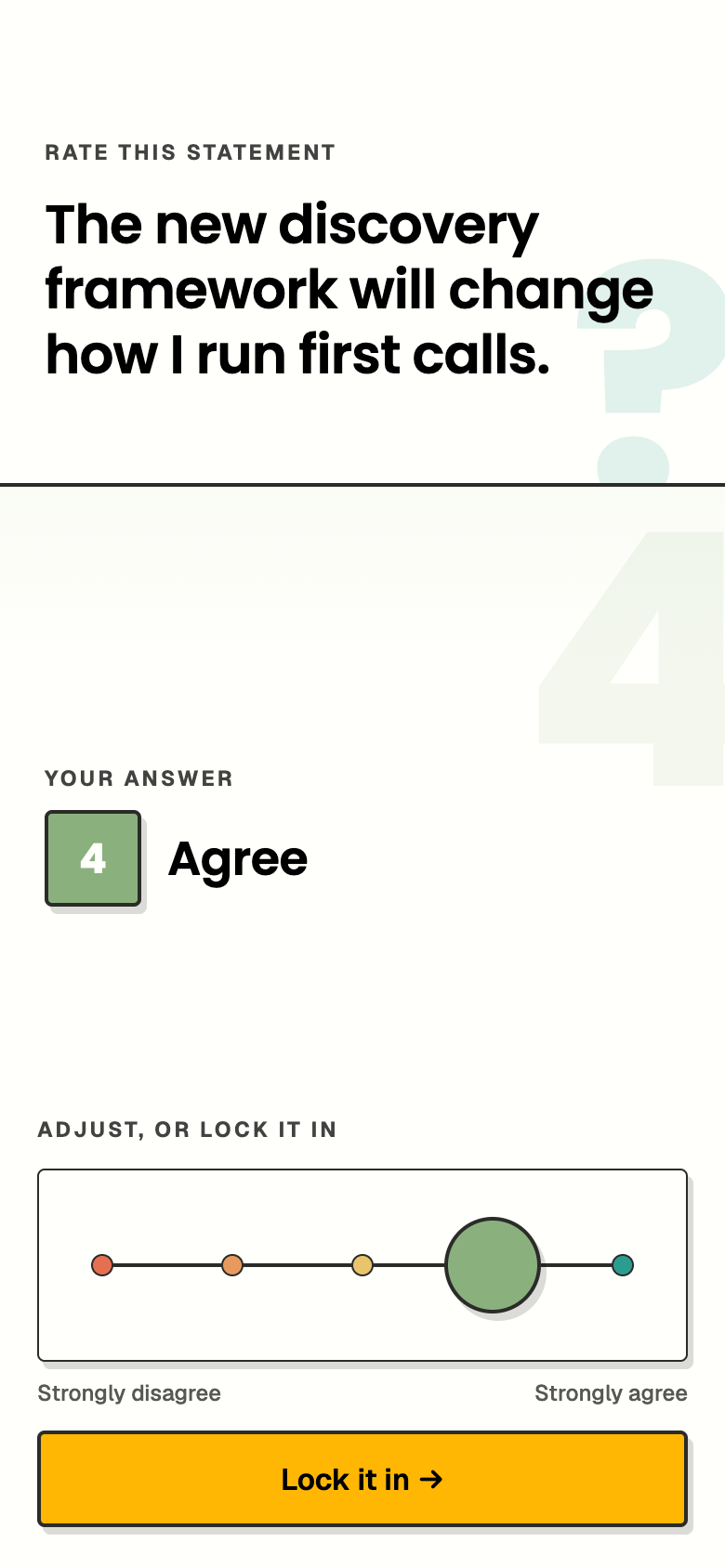
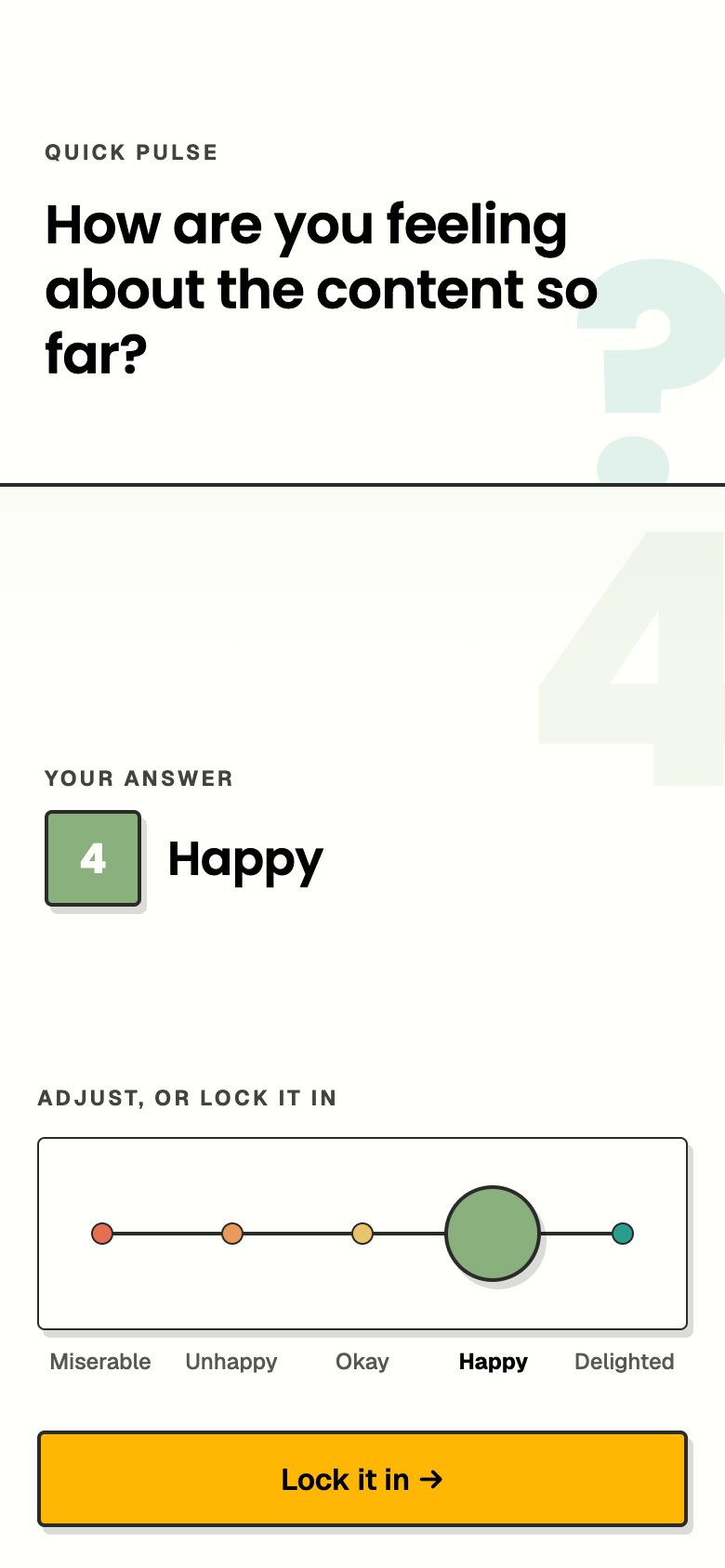
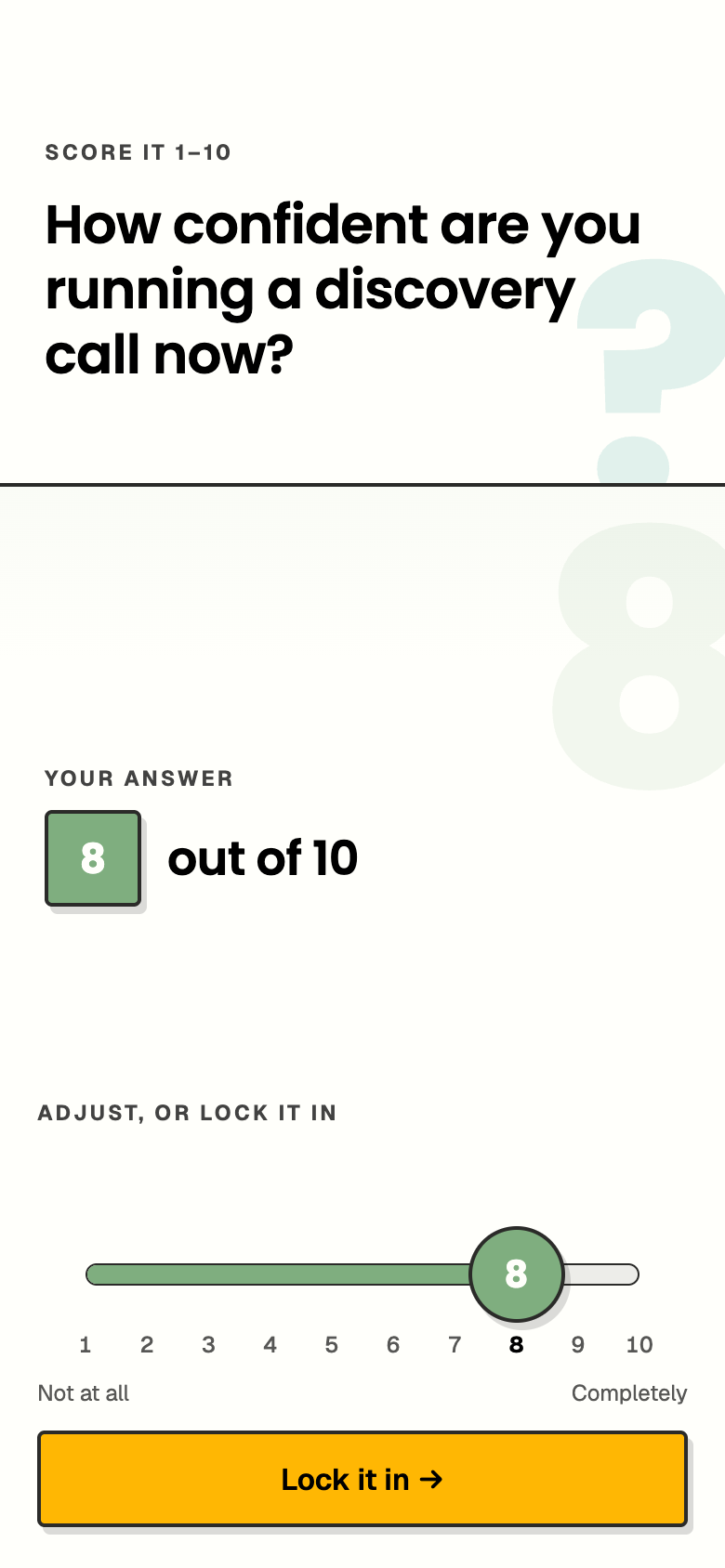
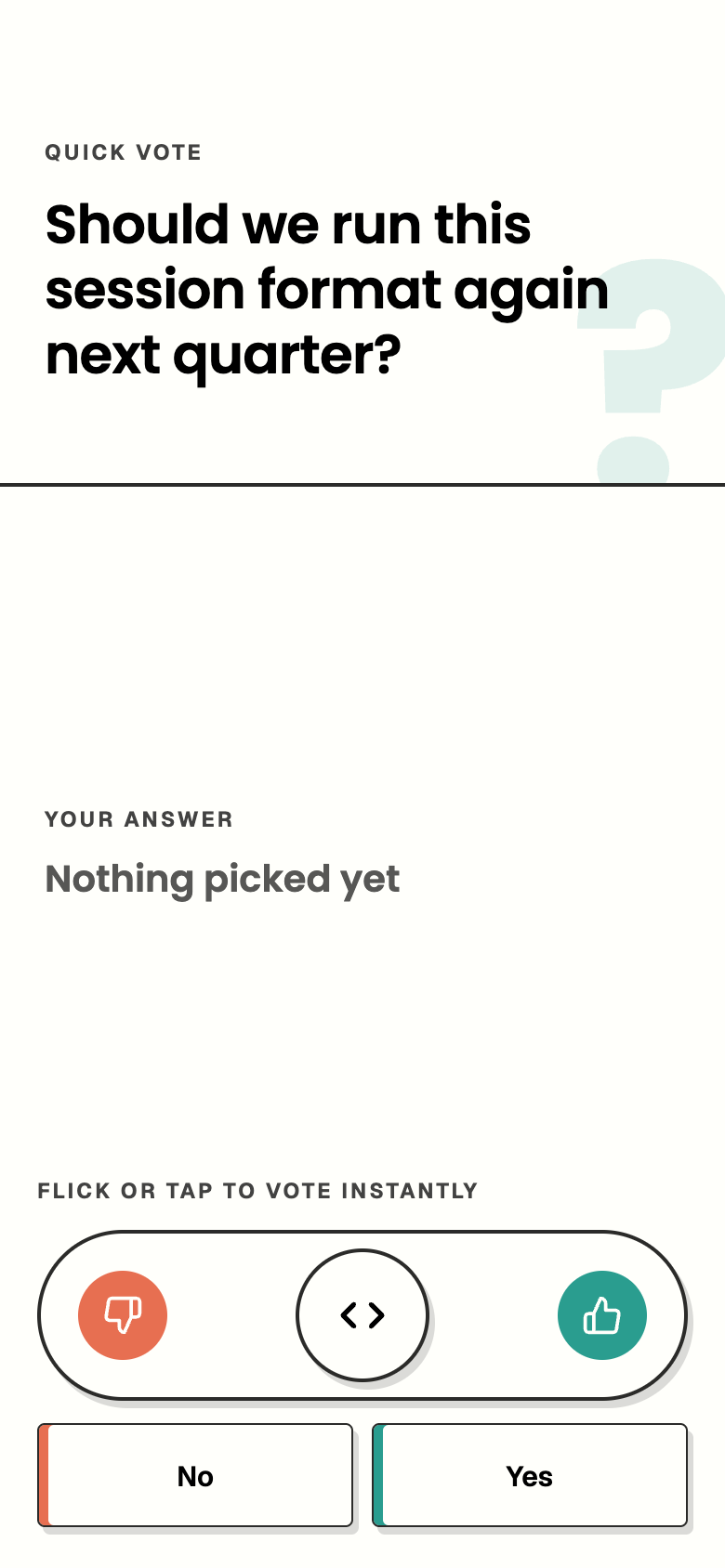
The colours run from terracotta at the negative end, through amber, to teal at the positive end, whatever palette your slide uses.
- Agreement and Emotion use a drag pad that snaps to the nearest answer. Emotion scales with five or fewer answers show every label under the pad; longer scales and Agreement show the two ends.
- Score uses a slider marked with every number. Tapping anywhere on it jumps to that number.
- Yes / No votes straight away. People flick the puck towards their answer or tap one of the two buttons, with no extra step.
After locking in, the phone confirms the answer and waits for your next question:
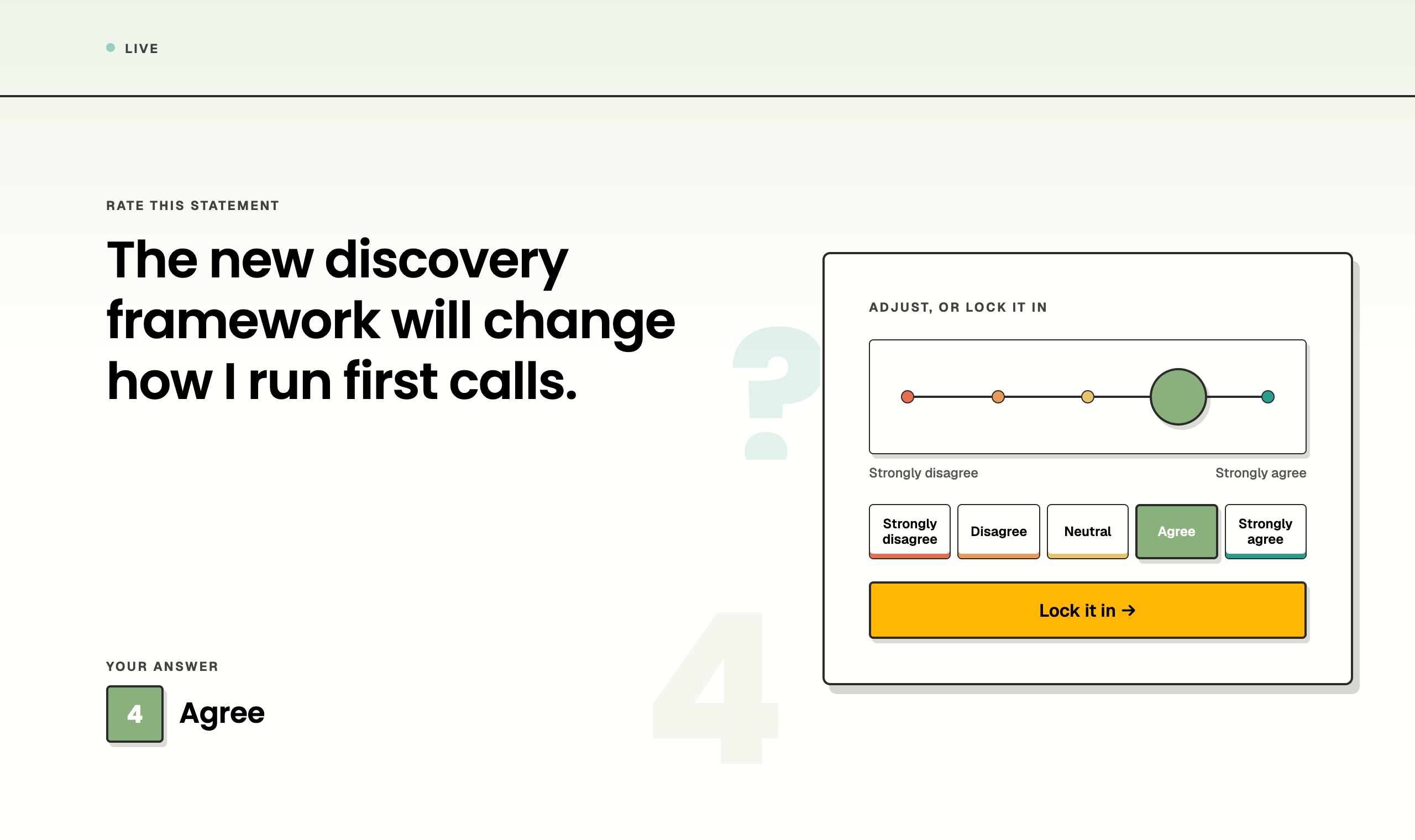
On a wider screen, such as a laptop, the question sits on the left and the scale on the right, with a button for every answer so people can also choose with a mouse or keyboard.
Reading the results
On the dashboard, a scale leads with a single figure instead of a leading answer:
| Scale | Headline | Example |
|---|---|---|
| Agreement | Share of votes in the agreeing half | 62% agree |
| Emotion | Share of votes in the positive half | 62% positive |
| Score | Average, with the median underneath | 7.2 average (1–10) |
| Yes / No | Share for your positive answer, in your words | 72% Yes |
Beneath the headline you will see how the votes split between the negative half, the middle answer (when there is one) and the positive half.
Split room
A scale is marked Split room when at least 35% of votes sit at each end, from five or more votes. An average in the middle can hide a room that disagrees strongly, and that calls for a different conversation than a room that is genuinely neutral.
If you ask the same scale again later in a session, the dashboard shows how the headline moved, for example +0.8 since previous asking on a score or +12 pp on a percentage. It is a simple way to show that a session changed how people feel.
Rating scales as drop-ins
A rating scale makes a good drop-in: a temperature check you can put in front of the room from the presenter page whenever it drifts. In your Poll library, choose the scale under Type. Scale drop-ins can have up to 10 steps.
Each time you use the same drop-in during a session, the dashboard links the results in the order you asked them, so a check repeated through a workshop reads as a trend.
Good to know
- The chart on your slide shows a scale as bars in answer order, using your slide's palette. The phone uses its own negative to positive colours.
- Scales created before Agreement and Emotion became separate choices are treated as Agreement.
Ready to try one? Pick a slide, choose Rating scale and follow the steps above. For everything a poll can do, see Polls & settings.